Google Pixel devices that are updated to at least Android 16 now have access to new customization options in the Pixel Launcher. These features are exclusive to Pixel phones and offer a unique way to personalize your home screen, something that iPhones cannot replicate. The custom icon packs allow users to change the look of their app icons in ways that go beyond the standard options. These packs use AI to generate icons that can be applied system-wide on Google Pixel 6 models and later.
Some icon packs let you tweak the prompt to adjust colors, and when you tap a pack, a dotted line appears under the prompt text, indicating which elements can be modified. For example, the Disco icon pack has a set style that cannot be changed, but you can still make adjustments to improve its appearance on your home screen. One such adjustment is using the “Static” toggle to freeze animations, making the icons less dynamic if preferred.
The Disco-themed icon pack was inspired by a Twitter/X thread from user RaceJohnson, who discussed discomorphism. Surprisingly, Sameer Samat, the President of the Android Ecosystem, mentioned bringing this pack to Android phones, and it eventually became available. This particular pack is shinier and more animated than the default options, and with Material 3 Expressive, it adds a more lively feel to your device. Now is an excellent time to experiment and see what your Pixel phone can do.
How to Change Your App Icons to the Disco Style
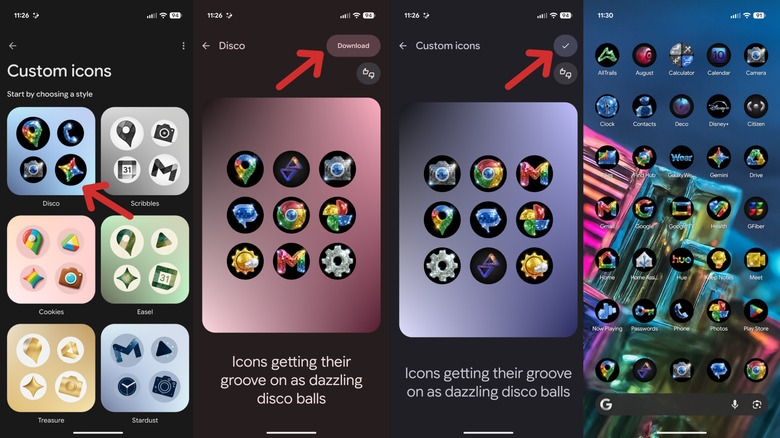
If your Google Pixel device is a Pixel 6 or newer and running the March 2026 Pixel Feature Drop (Android 16 QPR3) or later, you can use the “Create” feature to add the Disco icon packs. To check for OS updates, go to Settings > System > Software updates > System update.
To add the pack and change your app icons, start by opening Settings and tapping Wallpaper & style. Alternatively, long-press any empty space on your home screen and tap Wallpaper & style to access the same menu. Swipe to the right to ensure you’re on the Home screen tab. Scroll down and tap Icons. You’ll see four options: Default, Minimal, Custom, and Create. Tap Create.
In this section, you should see a set of custom icons. Scroll down to the “Create a new style” section and choose Disco. Once the system generates a new set of icons, tap the Download button in the upper-right corner to obtain the Disco icon pack.
After the Disco icon pack is downloaded, return to the previous menu. Under the “Your styles” header on the “Custom icons” screen, tap the newly added pack (it should look disco-like). From there, select the check mark icon in the upper-right corner to apply it to your home screen.
Tips for Customizing Your Icon Packs
- Color Adjustments: Some packs allow you to modify colors based on prompts. Look for dotted lines under the prompt text to identify adjustable elements.
- Animation Control: Use the “Static” toggle to disable animations if you prefer a more subdued look.
- Experimentation: Don’t hesitate to try different icon packs to find the one that best matches your style and preferences.
Whether you’re looking for a fun way to personalize your device or simply want to explore the full potential of your Pixel phone, these new customization options offer a fresh and exciting experience. With the ability to create and apply custom icon styles, your home screen can reflect your personality in a way that’s both functional and visually appealing.