What Makes mpv Stand Out
VLC is widely recognized as one of the best media players available, boasting a vast array of features and support for numerous media formats. However, when I upgraded to a 4K HDR monitor, my experience with VLC wasn’t quite what I expected. Playing the few 4K HDR movies in my collection resulted in washed-out colors, erratic HDR tone mapping, and noticeable micro-stutters. After ensuring that my Windows 11 HDR settings were properly configured, I realized the issue wasn’t with my display.
My attempts to tweak VLC’s settings proved unproductive. This led me to explore alternatives, where I discovered mpv—a free, open-source media player. Since then, the only downside has been the increased activity of my laptop fans, as playing 4K HDR content is quite demanding. Everything that VLC struggled with, mpv managed to fix seamlessly.
Understanding mpv: A Minimalist Player
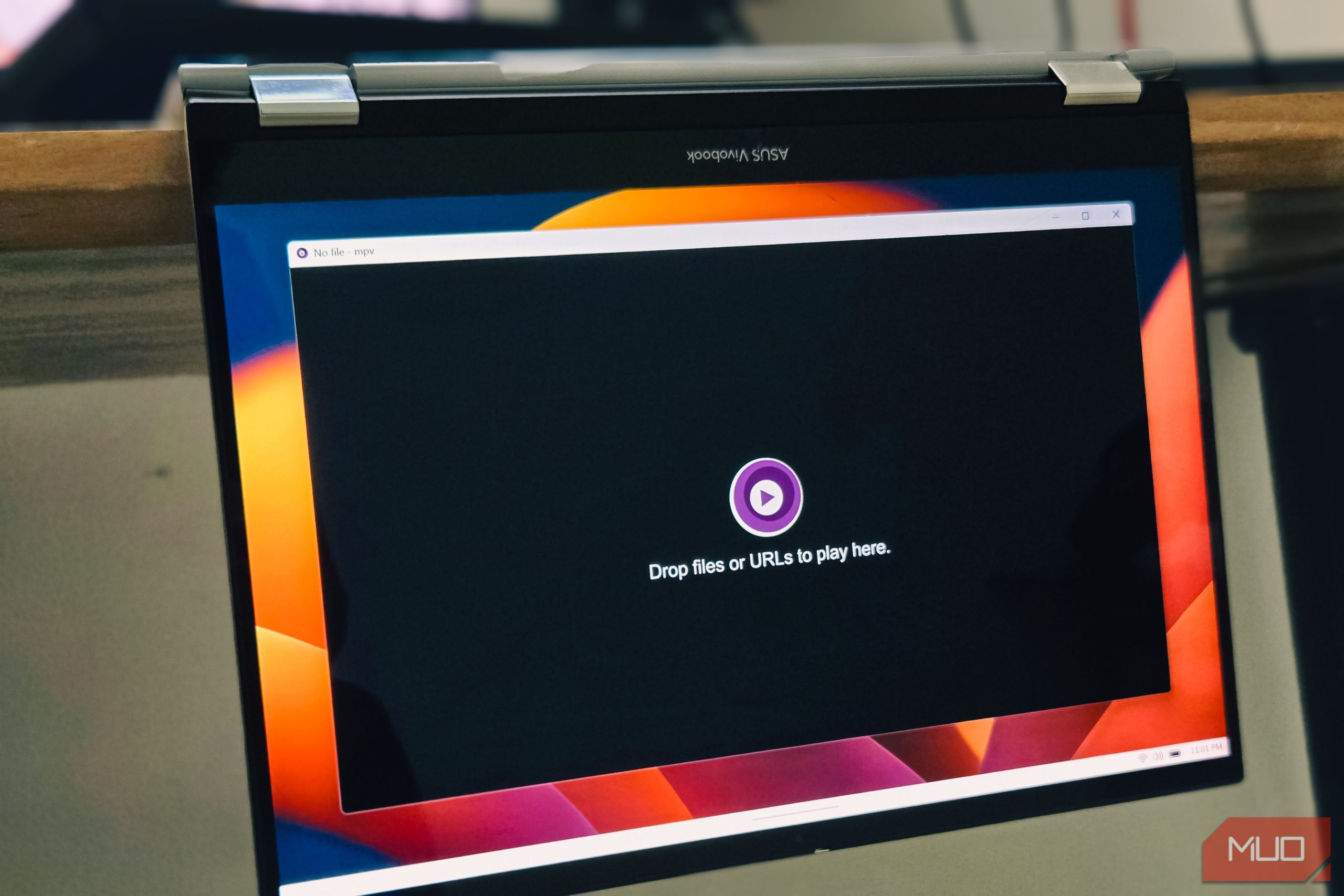
mpv is a free, open-source media player that operates on Windows, macOS, and Linux, maintaining consistent behavior across all platforms. Upon launching it, you’re presented with a black window that simply states, “Drop files or URLs to play here.” This minimalistic interface is both its strength and challenge.
Installing mpv can be a bit more involved than typical download-and-click methods, even for those familiar with GitHub. On Windows, the most straightforward method involves using a package manager. You can run either:
scoop install mpv
or
choco install mpv
These commands handle the download, future updates, and PATH setup automatically. If you prefer manual installation, you can download a prebuilt shinchiro build from GitHub, unzip it, and run the mpv-install.bat file to add the “Open with mpv” option via right-click.
On macOS, installing mpv is straightforward with:
brew install --cask mpv
Alternatively, you can opt for IINA, which provides a polished Mac interface while using the same engine as mpv. For Linux users, mpv is typically available in most distro repositories, making installation as simple as:
sudo apt install mpv
or using your preferred package manager.
Optimizing mpv for Smooth HDR Playback
To ensure proper HDR playback, some configuration is necessary. mpv stores its settings in a plain text file called mpv.conf, where the HDR settings are located. The following three lines improved my color accuracy:
vo=gpu-next
target-colorspace-hint=yes
hwdec=auto
Each line serves a specific purpose. vo=gpu-next switches to mpv’s newer video output, which offers better color handling. target-colorspace-hint=yes tells your display to switch into HDR mode and passes the movie’s HDR metadata directly, avoiding any guesswork. hwdec=auto delegates decoding to your GPU, ensuring smooth 4K playback and eliminating stutters.
To verify if these settings are working, press Shift + I during playback to bring up the stats overlay. It displays the resolution, codec, frame rate, and color space, allowing you to confirm that HDR is being passed through correctly.
Custom Keybinds and Scripts for Enhanced Control
mpv’s plain-text approach extends beyond just settings. The input.conf file controls every key and mouse button within the player. By default, Space pauses playback, comma and period step back and forward by one frame, brace keys adjust playback speed, and L sets an A-B loop. After a week, I found myself relying less on the mouse entirely.
The real flexibility comes from customizing these keybindings. In input.conf, you can map actions like zooming, rotating, or scaling windows to any key or mouse button that suits your preferences. Additionally, mpv supports Lua scripts, offering a wide range of possibilities. A few lines of Lua code allowed me to create a one-key zoom reset with an on-screen message. Pairing mpv with yt-dlp also enables direct access to YouTube, Twitch, and other links without needing a browser.
Why mpv is Ideal for Everyday HDR Viewing
Despite its minimal UI, which initially seemed stark, mpv has become my default player for everything, not just HDR demos. Its lightweight design allows multiple instances to run side by side without straining the system, which is essential for watching content in HDR. It also functions as a capable image viewer, supporting native resolution viewing, scaling oversized images, and enabling zoom and pan functionality with the mouse.
Additionally, pointing mpv at a folder allows it to generate a playlist on the spot, letting you jump to the next file with a single key press and loop back at the end. Compared to VLC’s cluttered and somewhat outdated interface, mpv stays out of the way, dedicating every available resource to the actual video. This makes it the leaner choice that many longtime VLC users have quietly transitioned to.
Conclusion: mpv as the MVP of Media Players
While mpv isn’t perfect—there’s no built-in library for organizing films, the installation process is more complex than a double-click, and the configuration approach requires some initial reading—it excels in one crucial area: watching HDR movies the way they’re meant to look. With just three lines of configuration, I achieved accurate colors and smooth playback that hours of tweaking VLC never managed. The fans still spin, but I’ve made peace with that.
For those looking for a powerful, customizable, and efficient media player, mpv is the clear winner.